

CRM ERP Integration: What to Map Before Connecting Systems
Most teams start crm erp integration by asking which tool to connect first. The better question is what data should move, who owns each record, and what happens when the systems disagree. This guide walks through the decisions that shape a scoped integration project, from record mapping to exception handling, so you can plan the work before a single API call is made.
What CRM ERP Integration Means in Practice
A CRM holds customer-facing data: contacts, leads, quotes, support tickets, and sales activity. An ERP holds operational data: inventory, orders, invoices, fulfillment, and financials. CRM ERP integration connects those two systems so a sales team can see whether an order shipped, and an operations team can see which customer account a purchase belongs to.
The integration itself is a set of rules and data flows, not a single product. You decide which records sync, which system owns each field, and how often the data moves. Some teams need near-real-time updates when an order status changes. Others only need a nightly batch that pushes new invoices into the CRM account record.
That distinction matters because it changes the architecture. A real-time sync usually requires event-driven messaging or webhooks. A nightly batch can run on a scheduled job with less infrastructure. Understanding the workflow before choosing the approach helps avoid building more than the business actually needs.
The benefits of crm erp integration show up in three places. Sales stops asking operations for order status. Finance stops rekeying customer details from one screen to another. Support stops guessing whether a return was processed. Each benefit traces back to a specific data flow, which is why mapping comes before connecting.
Map Records, Ownership, and System-of-Record Decisions
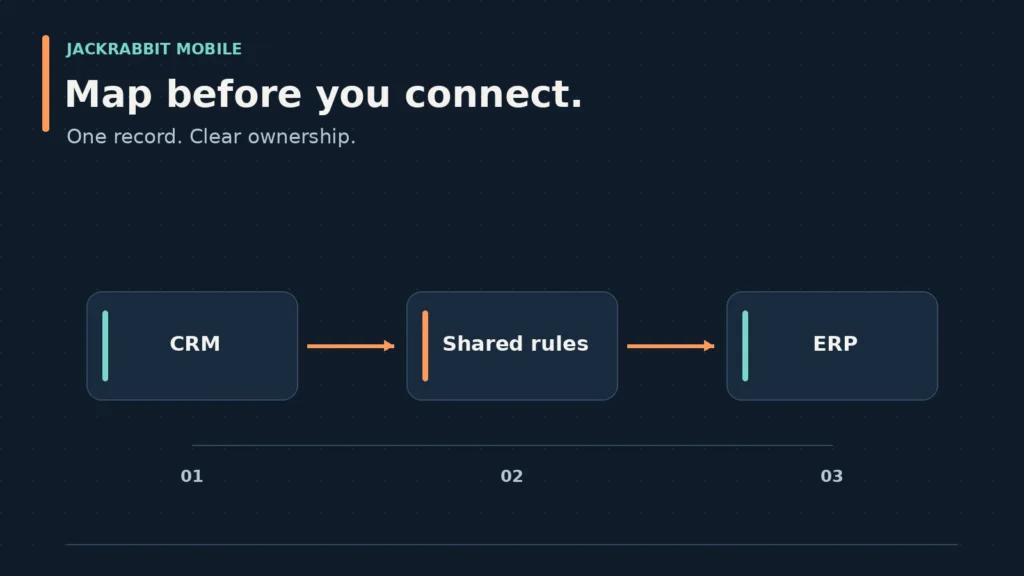
Every integration starts with a record map. You list the objects in each system and decide which ones correspond. A CRM account might map to an ERP customer. A CRM opportunity might map to an ERP sales order. A CRM product might map to an ERP item master.
The harder part is deciding which system owns each field. The CRM usually owns contact details, lead source, and communication history. The ERP usually owns pricing, inventory levels, and invoice status. When a field exists in both systems, you pick one system of record and make the other read-only for that field.
For example, a customer address might live in both the CRM and the ERP. If a sales rep updates the address in the CRM, the integration should push that change to the ERP. If an operations manager corrects the billing address in the ERP, the integration should push it back. Without a clear owner, both teams edit the same field in different places and the data drifts.
A sound discovery phase identifies business goals, defines requirements, and develops system architecture before code is written. That gives an integration a foundation based on the actual workflow rather than assumptions made before the project begins.
Define the Matching Key
Every record pair needs a matching key. The CRM and ERP rarely use the same internal ID, so you need a shared identifier. Common options include an email address, a customer number from the ERP, or an external ID field stored in both systems.
The matching key must be unique, stable, and present on both sides. Email addresses work for many B2B teams but fail when multiple contacts share a company domain. ERP customer numbers are stable but only exist after the ERP creates the record. Decide which key applies before the first sync runs.
Handle Duplicates Before They Multiply
Duplicate records are the most common integration failure. If the CRM creates a new account for a customer that already exists in the ERP, the integration creates a second ERP record. From that point forward, orders split across two customer numbers and reporting breaks.
Prevention beats cleanup. Build a matching step that checks for existing records by the matching key before creating a new one. If a near-match appears, route it to a person for review. The cost of a review queue is far lower than the cost of untangling duplicate financial records later.
Define Events, Exceptions, and Reconciliation Rules
An integration is only as reliable as its handling of things that go wrong. A record might fail to sync because a required field is missing. A webhook might time out. Two systems might disagree about an order total. Each of these needs a defined response.
Start with events. An event is a change in one system that triggers a sync. Common events include a new CRM lead converting to a customer, an ERP order shipping, an invoice becoming past due, or a support ticket closing. Each event has a trigger, a data payload, and a destination.
Then define exceptions. What happens when a sync fails? Does the system retry automatically? Does it log the error and alert a person? Does it queue the record for manual review? The answer depends on the data. A failed marketing email sync can wait. A failed invoice sync needs attention the same day.
Reconciliation rules cover disagreements. If the CRM shows an order total of $1,847 and the ERP shows $1,850, which one wins? Usually the ERP is the system of record for financial data, so the CRM updates to match. But that rule should be explicit, not assumed.
Build a Visible Error Queue
Integration errors should not hide in a log file that nobody reads. Build a queue that shows failed records, the reason for failure, and the last attempt time. Assign someone to review that queue on a schedule that matches the data’s importance.
A visible queue changes the conversation from “the integration is broken” to “three records failed because they were missing a shipping address.” That specificity makes the problem solvable.
Test with Real Edge Cases
Testing an integration with clean sample data proves very little. The real test is what happens when a customer has two email addresses, an order has a negative line item, or a sales rep changes a closed opportunity. Build test cases from actual historical data, not idealized scenarios.
QA and testing should exercise an integration against edge cases before launch, giving the project team a chance to identify and address issues during the work rather than after the system is live.
Choose an Integration Approach That Matches the Workflow
There are four common ways to connect a CRM and an ERP. Each has trade-offs in cost, speed, and maintainability.
Native connectors are prebuilt integrations offered by the CRM or ERP vendor. They are the fastest to set up when they exist and cover your workflow. The trade-off is limited customization. If your sales process does not match the connector’s assumptions, you will fight the tool.
Integration platform as a service (iPaaS) tools like Boomi, Workato, or Zapier sit between the two systems and move data based on triggers and mappings. They reduce the amount of custom code and provide monitoring dashboards. The trade-off is a recurring subscription cost and a dependency on the platform’s connector quality.
Custom API integration uses the CRM and ERP’s public APIs to build exactly the data flows you need. This gives the most control and fits unusual workflows. The trade-off is development time and ongoing maintenance. You own the code, the retries, the error handling, and the updates when either vendor changes their API.
Middleware or message queues add a layer for high-volume or complex integrations. Events publish to a queue, and consumers process them asynchronously. This approach handles spikes and retries well but adds infrastructure complexity. Most small and mid-sized teams do not need it on day one.
The right choice depends on volume, workflow complexity, and internal technical capacity. A five-person team with standard Salesforce-to-NetSuite needs might do fine with a native connector. A manufacturer with custom pricing rules and a field service workflow will likely need custom API work.
When Custom Development Makes Sense
Custom development earns its cost when the workflow does not fit a prebuilt pattern. Examples include custom pricing tiers that live in the ERP but must appear in the CRM quote tool, or a two-way sync where support tickets in the CRM create return orders in the ERP.
In those cases, the integration is not just moving data. It is encoding business rules. A development partner can help turn those rules into a defined software scope before implementation begins.
When a Connector Is Enough
If your CRM and ERP are both mainstream platforms and your process is standard, start with the native connector or an iPaaS. Set a time box: if the connector covers 80% of the workflow in two weeks, use it. If you are fighting it after a month, reconsider custom development.
The goal is not to build software for its own sake. The goal is a reliable data flow that your team actually uses.
Questions to Ask Before Implementation
These questions force the decisions that most integration projects postpone until they become emergencies.
Which system is the system of record for each shared field? Write it down field by field. If you cannot answer for a field, that field will cause a conflict.
What events should trigger a sync? List them explicitly. “When an order ships” is a trigger. “When something changes” is not.
What happens when a sync fails? Define retry behavior, alerting, and who reviews the error queue.
How do we match records between systems? Pick a matching key and a duplicate-handling rule before the first sync.
What are the security and access requirements? Decide which team members can view ERP data inside the CRM and vice versa. Not every sales rep needs to see cost data.
What is the go-live plan? Will you run both systems in parallel for a week? Will you backfill historical data? Who signs off that the data is correct?
Answering these questions before development starts turns crm erp integration from a vague project into a scoped set of requirements. That is the difference between an integration that launches and one that lingers.
Frequently Asked Questions
What are CRM and ERP?
A CRM manages customer-facing data like contacts, leads, quotes, and support tickets. An ERP manages operational data like inventory, orders, invoices, and financials. CRM ERP integration connects the two so sales, support, and operations teams share one accurate view of the customer and the transaction.
What are the top 3 CRM tools?
The most widely used CRM platforms include Salesforce, HubSpot, and Microsoft Dynamics 365. Salesforce is common in enterprise sales teams, HubSpot is popular with small and mid-sized businesses, and Dynamics 365 fits organizations already using Microsoft products. The right choice depends on your sales process and existing software stack.
Can you give me some examples of ERP and CRM software?
Examples of ERP software include SAP S/4HANA, Oracle NetSuite, Microsoft Dynamics 365 Business Central, and Odoo. Examples of CRM software include Salesforce, HubSpot, Zoho CRM, and Pipedrive. Some platforms like Dynamics 365 and Odoo offer both CRM and ERP modules.
Is SAP a CRM or ERP system?
SAP is primarily an ERP vendor. Its core product, SAP S/4HANA, manages operational and financial data. SAP also offers a CRM product called SAP Sales Cloud, but when people say “SAP” in the context of ERP, they usually mean the ERP system. The two are separate products that can be integrated.
Talk Through Your Integration Scope
If you are planning a crm erp integration and want to discuss how custom software, mobile or web applications, integrations and APIs, cloud work, UI/UX, QA/testing, or maintenance might fit your project, contact Jackrabbit Mobile to start a scoped conversation about your requirements.
 Older posts